Continuing where my last post on how to make Windows Vista do something that was easy on XP we have Hyperterminal. In case you don't know, Hyperterminal is a terminal emulation program that has shipped with every version of Windows since 95 (maybe earlier, I don't remember). Its most useful function at this point is sending data over RS-232 (serial ports). Unfortunately Microsoft must have decided that people don't use serial devices and modems anymore so they didn't bother to include Hyperterminal (or a similar program) with Vista (which I found out the hard way when I went looking for it during a chemistry lab today). Luckily for us Hilgraeve, the company that wrote Hyperterminal, distributes it for free (personal use only it looks like) on their website. While Vista support isn't listed it seems to work fine (you might have to run it or any other program that requires direct port access as an administrator depending on the circumstances)
If you don't like Hyperterminal there are also some alternatives available for free, but I have yet to find one I like. For example, PuTTY is a great ssh/telnet/rlogin client that marginally supports serial port access, but is missing some features that you might need depending on the protocol your serial device uses.
At least as of today we Vista users can now have video clips as our desktop backgrounds (well, Vista Ultimate anyway). Useless, but nifty (I'd rather have Hyperterminal come with Windows).
Well, I'm off to go burn a Knoppix DVD ;-) If anyone has an alternative to Hyperterminal that they like please comment.
Wednesday, September 26, 2007


Monday, September 17, 2007
RAW Thumbnails in Vista
Its been a couple months, but in case anyone is still reading here you go:
I have recently found myself in possession of a Vista machine, which I hate to put something better on because it comes preloaded with a bunch of useful stuff (college package). One of the things that irritates me about it is that Microsoft hasn't updated the XP PowerToys that supplied functionality such as a viewer for RAW files produced by higher end digital cameras (well, unless you count the poker game that shipped over WindowsUpdate). Luckily if you have a Nikon camera then Nikon has you covered with a plugin for Vista to provide the same functionality as the XP PowerToy which you can download for free here. If you have a Canon then you can read this MSDN blog post and see if you can get this functionality or not. Most of the other major manufacturers have similar packages: Sony Olympus Pentax
For real editing I'm a fan of GIMP and UFRaw as always ;-)
Happy Picture Taking!
I have recently found myself in possession of a Vista machine, which I hate to put something better on because it comes preloaded with a bunch of useful stuff (college package). One of the things that irritates me about it is that Microsoft hasn't updated the XP PowerToys that supplied functionality such as a viewer for RAW files produced by higher end digital cameras (well, unless you count the poker game that shipped over WindowsUpdate). Luckily if you have a Nikon camera then Nikon has you covered with a plugin for Vista to provide the same functionality as the XP PowerToy which you can download for free here. If you have a Canon then you can read this MSDN blog post and see if you can get this functionality or not. Most of the other major manufacturers have similar packages: Sony Olympus Pentax
For real editing I'm a fan of GIMP and UFRaw as always ;-)
Happy Picture Taking!
Saturday, June 16, 2007
Free VPN Access to the Internet
It has been just over a month since I last posted here; sorry about that. One of the more useful things on my backlog of things to mention is a relatively new company offering free access to the Internet over a VPN (among other things)
I'm not sure how the economics of this work, but the idea is that you use their service as a way to use the Internet in a more private fashion (not just the WWW). Granted, there is a lot of talk in the news about ISPs keeping track of what people do with the Internet, but it seems like such a service has a lot more uses that just remaining semi-anonymous while stealing music or movies (which is the first use hinted at by the website). The most obvious use being tunneling through firewalls. If you are behind a router and would rather not have to concern yourself with port forwarding, this may be a way to have things work. The downside is that since you have to connect to whatever service you are using through another server the connection isn't going to be particularly fast.
Anyway, SecureIX offers such a service as well as a 1G email account with both POP3 and IMAP and Usenet access. They also have a paid version if you need more bandwidth. The VPN uses the PPTP protocol which is fairly widely supported (they have mediocre setup instructions for Windows).
Give it a try if you have a use for an extra public IP (gaming and server testing come to mind)
You can read a little about my previous experiments with VPNs here
I'm not sure how the economics of this work, but the idea is that you use their service as a way to use the Internet in a more private fashion (not just the WWW). Granted, there is a lot of talk in the news about ISPs keeping track of what people do with the Internet, but it seems like such a service has a lot more uses that just remaining semi-anonymous while stealing music or movies (which is the first use hinted at by the website). The most obvious use being tunneling through firewalls. If you are behind a router and would rather not have to concern yourself with port forwarding, this may be a way to have things work. The downside is that since you have to connect to whatever service you are using through another server the connection isn't going to be particularly fast.
Anyway, SecureIX offers such a service as well as a 1G email account with both POP3 and IMAP and Usenet access. They also have a paid version if you need more bandwidth. The VPN uses the PPTP protocol which is fairly widely supported (they have mediocre setup instructions for Windows).
Give it a try if you have a use for an extra public IP (gaming and server testing come to mind)
You can read a little about my previous experiments with VPNs here
Saturday, May 12, 2007
Ubuntu
Ubuntu seems to be the current fad in computing, probably because of Vista's problems. For those who don't know, Ubuntu is a Linux distribution based off Debian which has been made more user friendly. Even Dell is going to start offering Ubuntu preinstalled on a few of their computers soon. Being a fairly long time Linux user myself, I'm all for the extra attention Ubuntu has been netting the Linux world since it turns up lots of useful tips on various blogs. Take for example, this ExtremeTech article. The first few pages are pretty boring to anyone who has used Gnome before but the subsequent pages are full of useful tips for Gnome and BASH users, both new and more experienced.
If you haven't already tried Ubuntu and want to get in on the action there are a bunch of ways to give it a try. You could just download the CD or DVD (or order a CD for free in the mail) which has a limited Ubuntu system which you can install to an extra hard drive. You could also try out "Wubi" which will install Ubuntu in Windows (I haven't personally tied it yet, since I have Linux installed anyway, but Lifehacker liked it). Or, as I have suggested before, try out the Knoppix LiveCD (or DVD). Knoppix is also based on Debian but is intended to be used exclusively as a boot disc and has a huge amount of software installed for you to try out.
If you haven't already tried Ubuntu and want to get in on the action there are a bunch of ways to give it a try. You could just download the CD or DVD (or order a CD for free in the mail) which has a limited Ubuntu system which you can install to an extra hard drive. You could also try out "Wubi" which will install Ubuntu in Windows (I haven't personally tied it yet, since I have Linux installed anyway, but Lifehacker liked it). Or, as I have suggested before, try out the Knoppix LiveCD (or DVD). Knoppix is also based on Debian but is intended to be used exclusively as a boot disc and has a huge amount of software installed for you to try out.
Tuesday, May 08, 2007
Skype: Free Calling on Mother's Day
If you aren't a regular Skype user, you may not know that they are offering 200 minutes of free calling (per computer) on mother's day (5-13) this year. This could be a great opportunity to give Skype a try, though I would recommend setting up Skype on both ends and just talking over the Internet (maybe even get a webcam going).
You can download the Skype client here for most popular operating systems. If you prefer something a bit more open (and no free calling) try Gizmo or FWD.
You can download the Skype client here for most popular operating systems. If you prefer something a bit more open (and no free calling) try Gizmo or FWD.
Saturday, April 28, 2007
College
It's been a little over a month... I just wanted to have something new up.
I have been busy researching/deciding on a college (Any thoughts on RPI, UofRochester or SUNY Binghamton? please post in the comments!) and getting ready for APs in a couple weeks. Hopefully I will have more time in a few weeks.
While we are on the topic of colleges I thought I would share some links with you that I have found helpful. I should be back to my usual topics next time.
RateMyProfessors.com: Allows current students to rate their teachers on a variety of criteria. Unfortunately there aren't always that many reviews, but most professors have a few. Most of the above colleges have pretty mixed reviews (as can be expected) but I would think that if a college you are looking at has mostly bad reviews that might be pretty telling. RateAProf.com and PickAProf.com advertise similar things but have almost no reviews compared to RateMyProfessors
StudentsReview.com: Offers statistics, ratings and (most importantly) comments from current students and alumni. Like the above sites, there aren't too many reviews but I found there are enough to get some idea from the comments. The UI could use some improvement, however. Type your college in the search box on the top, and then choose it from the list of results. On the resulting page you should see a pie chart of students who would vs those who would not return. Under that chart click the link labeled "click here to find out why" to read the individual student comments.
FastWeb.com: Probably everyone already knows about FastWeb, but I think they are worth a mention anyway. FastWeb offers a scholarship search. All you have to do is fill out their incredibly long, tedious survey and you will be matched with scholarships (and banner ads). They also offer some mildly interesting articles from time to time. There are a huge number of other scholarship search engines as well, but despite all the advertising I have found FastWeb to be the most usable.
USNews: America's Best Colleges: Perhaps not as useful as the others, but It does give you an idea of how a given college stacks up to others in the US. They also have a scholarship search and other information.
CollegeBoard.com: The CollegeBoard publishes the SAT and AP tests, among others. Their website has all you need to know about their tests as well as some (basic) college comparison tools, a scholarship search engine and financial calculators. They also run the CSS profile required by some financial aid offices.
CommonApp.org: Home of the Common Application for US colleges. Fill out one form over the internet (or print and mail) to apply to a bunch of different colleges. Enough Said!
FAFSA: Online application for Federal Financial Aid.
Anyone have any other suggestions? Please comment!
Edit: Heading to RPI in the fall.
I have been busy researching/deciding on a college (Any thoughts on RPI, UofRochester or SUNY Binghamton? please post in the comments!) and getting ready for APs in a couple weeks. Hopefully I will have more time in a few weeks.
While we are on the topic of colleges I thought I would share some links with you that I have found helpful. I should be back to my usual topics next time.
RateMyProfessors.com: Allows current students to rate their teachers on a variety of criteria. Unfortunately there aren't always that many reviews, but most professors have a few. Most of the above colleges have pretty mixed reviews (as can be expected) but I would think that if a college you are looking at has mostly bad reviews that might be pretty telling. RateAProf.com and PickAProf.com advertise similar things but have almost no reviews compared to RateMyProfessors
StudentsReview.com: Offers statistics, ratings and (most importantly) comments from current students and alumni. Like the above sites, there aren't too many reviews but I found there are enough to get some idea from the comments. The UI could use some improvement, however. Type your college in the search box on the top, and then choose it from the list of results. On the resulting page you should see a pie chart of students who would vs those who would not return. Under that chart click the link labeled "click here to find out why" to read the individual student comments.
FastWeb.com: Probably everyone already knows about FastWeb, but I think they are worth a mention anyway. FastWeb offers a scholarship search. All you have to do is fill out their incredibly long, tedious survey and you will be matched with scholarships (and banner ads). They also offer some mildly interesting articles from time to time. There are a huge number of other scholarship search engines as well, but despite all the advertising I have found FastWeb to be the most usable.
USNews: America's Best Colleges: Perhaps not as useful as the others, but It does give you an idea of how a given college stacks up to others in the US. They also have a scholarship search and other information.
CollegeBoard.com: The CollegeBoard publishes the SAT and AP tests, among others. Their website has all you need to know about their tests as well as some (basic) college comparison tools, a scholarship search engine and financial calculators. They also run the CSS profile required by some financial aid offices.
CommonApp.org: Home of the Common Application for US colleges. Fill out one form over the internet (or print and mail) to apply to a bunch of different colleges. Enough Said!
FAFSA: Online application for Federal Financial Aid.
Anyone have any other suggestions? Please comment!
Edit: Heading to RPI in the fall.
Wednesday, March 14, 2007
Linux and the Samsung ML-2510
This post will probably only affect a small number of people, but it might be useful anyway (if only to remind me next time). Anyway, I found myself setting up a Samsung ML-2510 ( a cheap 25ppm b&w laser printer) on a Gentoo Linux machine yesterday, and was somewhat surprised to find that Samsung supports a good number of their printers and scanners on Linux with a unified driver kit available here (their website doesn't seem to work too well on firefox/flash9 for Linux). The driver comes with a fancy installer (just run the "autorun" binary after you extract it) which works perfectly except that, at least on Gentoo, it puts the cups filters in the wrong directory. So, the trick is to copy/symlink the contents of /usr/lib/cups/filter/ to /usr/libexec/cups/filter/
and adjust the port cups thinks the printer is connected to and things should work well. Good job Samsung for at least trying to provide support, a few of us do appreciate it! (Actually there are open source drivers for printers that speak Samsung's language as well, but I couldn't get them working easily).
If people are interested in a more detailed Linux printing help using CUPS, google around or check out LinuxPrinting.org
EDIT (4-10-07): Fixed model number typo.
RE: Commenter #1: Gentoo's cups start script is /etc/init.d/cupsd. I don't think the installer is necessarily broken, it is just not putting things in the correct places for Gentoo's setup (not sure if it is standardized or not). Another thing to try is to delete the printer the Samsung driver installer made for you (cups web interface) and re-do it using the usb device (/dev/usb/lp0 on my machine) that is associated with your printer instead of the default Samsung path (use the cups web interface: http://localhost:613). The official Samsung driver should be in the list of selectable drivers (I forget what it is under, should be obvious) when you add the new printer through the cups web interface. If you are still having trouble, feel free to email me or try asking on the Gentoo forums.
and adjust the port cups thinks the printer is connected to and things should work well. Good job Samsung for at least trying to provide support, a few of us do appreciate it! (Actually there are open source drivers for printers that speak Samsung's language as well, but I couldn't get them working easily).
If people are interested in a more detailed Linux printing help using CUPS, google around or check out LinuxPrinting.org
EDIT (4-10-07): Fixed model number typo.
RE: Commenter #1: Gentoo's cups start script is /etc/init.d/cupsd. I don't think the installer is necessarily broken, it is just not putting things in the correct places for Gentoo's setup (not sure if it is standardized or not). Another thing to try is to delete the printer the Samsung driver installer made for you (cups web interface) and re-do it using the usb device (/dev/usb/lp0 on my machine) that is associated with your printer instead of the default Samsung path (use the cups web interface: http://localhost:613). The official Samsung driver should be in the list of selectable drivers (I forget what it is under, should be obvious) when you add the new printer through the cups web interface. If you are still having trouble, feel free to email me or try asking on the Gentoo forums.
Sunday, March 11, 2007
Debian Package of the Day
Just a quick post to prove I'm alive ;-)
Apparently some Debian developers have started a "package of the day" project to help introduce people to some of the software available in the Debian repositories. I imagine this could be very useful to people just starting out using Linux (I'm sure there will be more of those, now that Vista is out). They also have a Ubuntu version but I'm not sure how much difference there is between the Debian and Ubuntu repositories anyway, so you might just want to keep track of both. (via ./)
Being a Gentoo user, I find that the Gentoo online package database is also very good for this. Either browse by category or check out what has been updated recently.
There are also some handy list of Windows programs and their open source/Linux equivalents, such as the one offered by the Linux Equivalent Project or this list (which seems a little out of date to me)
Apparently some Debian developers have started a "package of the day" project to help introduce people to some of the software available in the Debian repositories. I imagine this could be very useful to people just starting out using Linux (I'm sure there will be more of those, now that Vista is out). They also have a Ubuntu version but I'm not sure how much difference there is between the Debian and Ubuntu repositories anyway, so you might just want to keep track of both. (via ./)
Being a Gentoo user, I find that the Gentoo online package database is also very good for this. Either browse by category or check out what has been updated recently.
There are also some handy list of Windows programs and their open source/Linux equivalents, such as the one offered by the Linux Equivalent Project or this list (which seems a little out of date to me)
Sunday, February 25, 2007
Vista
So, you want to try Microsoft's latest and greatest? It seems like they still don't have all the bugs worked out yet, so read up before buying... Here are some links to get you started:
Tom's Hardware thread on Supported Hardware
Partial list of Vista Drivers (via /.)
Software Compatibility list (via dailycupoftech)
The Windows Vista Upgrade Advisor
The Microsoft TechNet Hardware Compatibility list (seems to be dead right now)
Tom's Hardware thread on Supported Hardware
Partial list of Vista Drivers (via /.)
Software Compatibility list (via dailycupoftech)
The Windows Vista Upgrade Advisor
The Microsoft TechNet Hardware Compatibility list (seems to be dead right now)
Friday, February 16, 2007
VLC
At last, time to post something exciting!
VLC is a free and open source media player with streaming and transcoding capabilities.
Besides being an easy way to play nearly any video format, VLC's streaming capability makes it really easy to stream a video from one computer to another over the network. For a dvd quality video, you should be able to get away with a 54Mbit wireless connection, maybe less. You will also need a reasonably fast computer hosting the video, particularly if you are transcoding it. If you have a decent, wireless Pocket PC that might make a good client computer to watch your video on. So, now you're wondering how...
Step 1: download and install VLC from www.videolan.org for whatever operating system(s) you are using. I will be using Windows and Linux for this tutorial, but the idea is basically the same whatever you do.
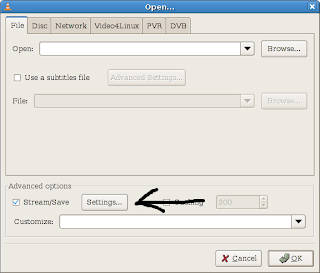
Step 2: Open whatever it is you want to play or stream using the options in the file menu. The dialog that comes up should be pretty self explanatory pick your media, and check the save/stream box near the bottom. Then click the settings button next to the stream checkbox.
The next dialog allows you to choose protocol and transcoding settings. I recommend you check the "play locally" box and the "udp" box, because the udp protocol seems to work well. In the address box next to udp enter the ip address of the computer you are streaming to (in windows you can find it by typing ipconfig in a command prompt). If your original file is already in a reasonably compressed format you can skip down to setting up the client. Otherwise you need to pick a codec to use for recompression (so you don't need as much bandwidth). If you have a fast enough CPU i find mpeg4 works well, even over slow networks. Check out the screenshot below for settings to get you started. Experiment to find a good trade off between quality, bandwidth consumption and cpu usage. The bitrates you use will depend on the size of the video you are streaming and the codec you use. Smaller bitrates need less bandwidth to stream, but are lower quality.
If you are streaming though a router of some sort, you may need to increase the time to live (ttl) value.
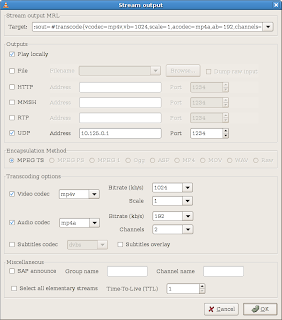
After you pick some settings you like, click ok to both dialogs. Your clip should begin to play.
On your client computer, open up VLC and choose open network stream. Assuming you are following along with this tutorial, choose UDP/RTP and leave everything else at the default settings. Click OK and your video should start streaming.
I have simplified this process quite a bit. VLC is really quite powerful so I would recommend you look through the documentation on videolan.org or google it for some more tutorials. Hopefully everything made sense. Try it between two computers first, then experiment with any mobile devices you may have. If you have a something on your tv that can support streaming video, chances are VLC can stream to it. You will just need to setup the correct format and protocol.
Have fun, and feel free to leave questions in the comments.
VLC is a free and open source media player with streaming and transcoding capabilities.
Besides being an easy way to play nearly any video format, VLC's streaming capability makes it really easy to stream a video from one computer to another over the network. For a dvd quality video, you should be able to get away with a 54Mbit wireless connection, maybe less. You will also need a reasonably fast computer hosting the video, particularly if you are transcoding it. If you have a decent, wireless Pocket PC that might make a good client computer to watch your video on. So, now you're wondering how...
Step 1: download and install VLC from www.videolan.org for whatever operating system(s) you are using. I will be using Windows and Linux for this tutorial, but the idea is basically the same whatever you do.
Step 2: Open whatever it is you want to play or stream using the options in the file menu. The dialog that comes up should be pretty self explanatory pick your media, and check the save/stream box near the bottom. Then click the settings button next to the stream checkbox.

The next dialog allows you to choose protocol and transcoding settings. I recommend you check the "play locally" box and the "udp" box, because the udp protocol seems to work well. In the address box next to udp enter the ip address of the computer you are streaming to (in windows you can find it by typing ipconfig in a command prompt). If your original file is already in a reasonably compressed format you can skip down to setting up the client. Otherwise you need to pick a codec to use for recompression (so you don't need as much bandwidth). If you have a fast enough CPU i find mpeg4 works well, even over slow networks. Check out the screenshot below for settings to get you started. Experiment to find a good trade off between quality, bandwidth consumption and cpu usage. The bitrates you use will depend on the size of the video you are streaming and the codec you use. Smaller bitrates need less bandwidth to stream, but are lower quality.
If you are streaming though a router of some sort, you may need to increase the time to live (ttl) value.

After you pick some settings you like, click ok to both dialogs. Your clip should begin to play.
On your client computer, open up VLC and choose open network stream. Assuming you are following along with this tutorial, choose UDP/RTP and leave everything else at the default settings. Click OK and your video should start streaming.
I have simplified this process quite a bit. VLC is really quite powerful so I would recommend you look through the documentation on videolan.org or google it for some more tutorials. Hopefully everything made sense. Try it between two computers first, then experiment with any mobile devices you may have. If you have a something on your tv that can support streaming video, chances are VLC can stream to it. You will just need to setup the correct format and protocol.
Have fun, and feel free to leave questions in the comments.
Subscribe to:
Posts (Atom)


