It seems like some OSTG sites have jumped the gun (Edit: I guess they are using UTC) on April fools, so be sure to visit Slashdot, and check out ThinkGeek's latest sale item (you should already know, if you get their email, but if not check here)
I'm sure there will be more sites doing this kind of foolishness tomorrow, If I get a chance, I'll try and link some more (taking the SAT tomorrow).
Friday, March 31, 2006


Emaling Images
Keeping with this week's photography theme (I'll try and have more variety soon), I have an explanation for a common problem with sharing pictures.
The Problem:
When people send other people (particularly those with little image editing knowledge) pictures from digital cameras or scanners they often are displayed very large. This problem has even effected some friends of mine who I have sent pictures, because I don't like to loose quality any more than necessary. If you view the picture in older versions of Internet Explorer, and your webmail provider doesn't scale images automatically, you will have a very small portion of the image, which looks awful, and a huge amount of area to scroll.
Why:
This involves a bit of theory about how digital images work. Most digital images are bitmaps (as apposed to vector drawings), groups of tiny dots called pixels. Digital cameras these days are often sold by their number of MegaPixels (not as important as some other features, cameras with good optics, image stabilization, and good processing, are often better than those without these features but with a high MP rating). A MegaPixel is 1Million Pixels and is a measure of area (Length * Width), for example my 6.1 Megapixel camera produces images 3039 pixels by 2014 pixels. If you multiply that out, you will find that it comes out to about 6.1 million pixels. Those 6.1 million pixels are either reduced to something that can be more easily displayed/printed or compressed into tighter bundles. The number of pixels in a given area (usually an inch), or its resolution is what is important when displaying images (often expressed in DPI or dots per inch). To get a reasonably sized print, I would have to use a resolution of at least 600 DPI; However, many monitors (and older imaging programs) display images at 72 DPI. This spreading out of the pixels (dots) is the cause of your huge photo problems. Of course, spreading the pixels out in this way also makes your picture look very bad, unless you have a very good camera/scanner.
What to do about it?
Well, you have two choices, you can reduce the number of pixels, or increase the resolution. Many programs can do both. For displaying the picture, look for a zoom function, and zoom out. I find that 30% zoom or less works well, for my 6 MP pictures. If you are sending pictures, it may be a good idea to scale them. In GIMP, the option is called "Scale Image", and I would expect it to be similar in most programs. I would start with a value around 1024x768 or 800x600 (these are common resolutions of monitors, so the resulting image should just about fill the typical screen), be careful not to stretch the image, type one number in and make sure that the option to keep the aspect ratio the same is enabled (often an image of a chain, or a check box), the program should fill the other value in with something appropriate. This is also good because it will drastically shrink the file size, just be sure to keep a copy of the original, because since you are throwing away pixels, you are lowering the overall quality (save as). The same thing goes for printing, many image editing packages, have an option to adjust the print size (including the default image viewer in Windows XP).
If you don't have any image editing software on your computer, you can always import an image into your Word Processing program (in Word use Insert -> Object -> From File). Size it by using its properties dialog or by dragging the small boxes on the corners, just be sure no to stretch it.
This should get you started, but if you want more info about megapixels vs. camera features, and print resolution, take a look at this article or search google.
If you don't want to deal with all this, you could just use a photo sharing program like picassa or a photo sharing site like flickr or ophoto (there are many more, do a search)
The Problem:
When people send other people (particularly those with little image editing knowledge) pictures from digital cameras or scanners they often are displayed very large. This problem has even effected some friends of mine who I have sent pictures, because I don't like to loose quality any more than necessary. If you view the picture in older versions of Internet Explorer, and your webmail provider doesn't scale images automatically, you will have a very small portion of the image, which looks awful, and a huge amount of area to scroll.
Why:
This involves a bit of theory about how digital images work. Most digital images are bitmaps (as apposed to vector drawings), groups of tiny dots called pixels. Digital cameras these days are often sold by their number of MegaPixels (not as important as some other features, cameras with good optics, image stabilization, and good processing, are often better than those without these features but with a high MP rating). A MegaPixel is 1Million Pixels and is a measure of area (Length * Width), for example my 6.1 Megapixel camera produces images 3039 pixels by 2014 pixels. If you multiply that out, you will find that it comes out to about 6.1 million pixels. Those 6.1 million pixels are either reduced to something that can be more easily displayed/printed or compressed into tighter bundles. The number of pixels in a given area (usually an inch), or its resolution is what is important when displaying images (often expressed in DPI or dots per inch). To get a reasonably sized print, I would have to use a resolution of at least 600 DPI; However, many monitors (and older imaging programs) display images at 72 DPI. This spreading out of the pixels (dots) is the cause of your huge photo problems. Of course, spreading the pixels out in this way also makes your picture look very bad, unless you have a very good camera/scanner.
What to do about it?
Well, you have two choices, you can reduce the number of pixels, or increase the resolution. Many programs can do both. For displaying the picture, look for a zoom function, and zoom out. I find that 30% zoom or less works well, for my 6 MP pictures. If you are sending pictures, it may be a good idea to scale them. In GIMP, the option is called "Scale Image", and I would expect it to be similar in most programs. I would start with a value around 1024x768 or 800x600 (these are common resolutions of monitors, so the resulting image should just about fill the typical screen), be careful not to stretch the image, type one number in and make sure that the option to keep the aspect ratio the same is enabled (often an image of a chain, or a check box), the program should fill the other value in with something appropriate. This is also good because it will drastically shrink the file size, just be sure to keep a copy of the original, because since you are throwing away pixels, you are lowering the overall quality (save as). The same thing goes for printing, many image editing packages, have an option to adjust the print size (including the default image viewer in Windows XP).
If you don't have any image editing software on your computer, you can always import an image into your Word Processing program (in Word use Insert -> Object -> From File). Size it by using its properties dialog or by dragging the small boxes on the corners, just be sure no to stretch it.
This should get you started, but if you want more info about megapixels vs. camera features, and print resolution, take a look at this article or search google.
If you don't want to deal with all this, you could just use a photo sharing program like picassa or a photo sharing site like flickr or ophoto (there are many more, do a search)
Thursday, March 30, 2006
Nikon RAW images w/o Nikon Capture
I touched on this earlier, in my GIMP post, so check that out if your not already familiar with GIMP.
Anyway,
Many of the more expensive digital cameras available today can save images in RAW format, with little or no compression and processing. This allows the photographer to do more post-processing with less image quality loss. Unfortunately, each camera manufacturer uses a slightly different file format, and Nikon at least requires that you buy special software to read the files (I recently bought a D50). Luckily, there are a few plugins for GIMP (and standalone programs) for converting and manipulating RAW files. After some experimentation, I have decided that I prefer UFRaw to the other alternatives (see my last post). UFRaw functions on most common operating systems, and supplies a standalone converter, a GIMP plugin and a batch conversion script. The GIMP plugin and GUI program have a nice import interface which allows you to adjust color curves, exposure, white balance and a few other options. Just using this screen alone, you can make drastic changes to your pictures. Once you get the image into GIMP/Photoshop, you can make even more changes, before saving as a jpeg or other lossy format, with almost no loss of quality. If your camera can produce RAW files, it is defiantly worth a try. UFRaw uses the DCRAW library, so in addition to the NEF files produced by my Nikon, most other common RAW files are also supported.
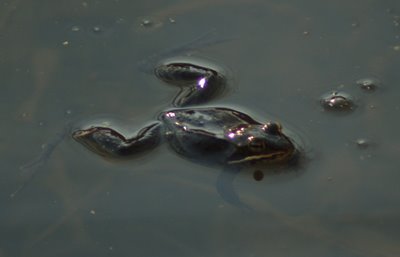
Because I have a good one on hand, below is a well cropped example produced by the UFRaw batch conversion script this afternoon of a frog (there are a lot of frogs in a pond near my home this week for some reason).
Well, back to my Biology homework ;-(
Have fun with GIMP
Anyway,
Many of the more expensive digital cameras available today can save images in RAW format, with little or no compression and processing. This allows the photographer to do more post-processing with less image quality loss. Unfortunately, each camera manufacturer uses a slightly different file format, and Nikon at least requires that you buy special software to read the files (I recently bought a D50). Luckily, there are a few plugins for GIMP (and standalone programs) for converting and manipulating RAW files. After some experimentation, I have decided that I prefer UFRaw to the other alternatives (see my last post). UFRaw functions on most common operating systems, and supplies a standalone converter, a GIMP plugin and a batch conversion script. The GIMP plugin and GUI program have a nice import interface which allows you to adjust color curves, exposure, white balance and a few other options. Just using this screen alone, you can make drastic changes to your pictures. Once you get the image into GIMP/Photoshop, you can make even more changes, before saving as a jpeg or other lossy format, with almost no loss of quality. If your camera can produce RAW files, it is defiantly worth a try. UFRaw uses the DCRAW library, so in addition to the NEF files produced by my Nikon, most other common RAW files are also supported.
Because I have a good one on hand, below is a well cropped example produced by the UFRaw batch conversion script this afternoon of a frog (there are a lot of frogs in a pond near my home this week for some reason).

Well, back to my Biology homework ;-(
Have fun with GIMP
Tuesday, March 28, 2006
Need an Antivirus Program?
Normally, I recommend AVG, but if you are in search of an antivirus program and don't like AVG, then you can get a free, 1 year trial of EZAntivirus (RoadRunner/TimeWarner gives this one away to their subscribers also).
Either Way, you should have something installed. I talked about other free options awhile ago .
Thanks to Techbargains for the link (if you haven't already, you should also check them out)
Either Way, you should have something installed. I talked about other free options awhile ago .
Thanks to Techbargains for the link (if you haven't already, you should also check them out)
Monday, March 27, 2006
Sending Large Files
Just a quick post tonight,
If you want to send large files to friends you can have a bit of a problem, unless you run your own file/web server. Email usually tops out at <10M (you shouldn't send anything that large by email anyway). One convinient option is a service that was recently pointed out to me called YouSendIt. Basically, you upload the file to YouSendIt (up to 1G) and they email the recipient a link to download it. If you prefer, rootshell.be will host up to a 700M file for a set amount of time, which you can upload to, and send a link manually. Either service should work well for most uses. If you want to send something larger than 1G, setup an FTP server or consider using bittorrent ( Azureus, among others, has an integrated tracker making it easy to publish torrents)
If you want to send large files to friends you can have a bit of a problem, unless you run your own file/web server. Email usually tops out at <10M (you shouldn't send anything that large by email anyway). One convinient option is a service that was recently pointed out to me called YouSendIt. Basically, you upload the file to YouSendIt (up to 1G) and they email the recipient a link to download it. If you prefer, rootshell.be will host up to a 700M file for a set amount of time, which you can upload to, and send a link manually. Either service should work well for most uses. If you want to send something larger than 1G, setup an FTP server or consider using bittorrent ( Azureus, among others, has an integrated tracker making it easy to publish torrents)
Friday, March 24, 2006
DARPA Grand Challenge
NOVA, on PBS is going to air a documentary on the DARPA Grand Challenge. For those who don't know, the Grand Challenge is a race for autonomous robots through a desert. They are airing it (the first time) at 8:00 PM (check your local PBS station to be sure) on March 28. Here in the Rochester area, its both on HD and regular PBS. The have a trailer on CNN, and some clips on the NOVA website, for the impatient. If you don't get PBS, you will still be able to watch online, here
Thursday, March 23, 2006
Uses for Old Technology
You know an older Technology is dead when people start making robots out of it. It started out, at least in my time, with floppy bots (most commonly using 3.5" floppy drives). Soon after, it has gotten to the point where its a pain to get a commercial computer with a floppy drive. Now people are racing tape players and to think, even last year many people were still using those for music.
I guess now the mp3 player is the only way to go. How long until someone takes apart an Ipod and uses the hard drive motor for racing? Speaking of sick ipods, if you have one, this site might be useful (not my fault if you break your ipod, from lifehacker).
Oh well, this is kind of sad, but it might be fun too! I have heard CDs make pretty good wheels for smallish cars.
Back to useful activities ;-(
I guess now the mp3 player is the only way to go. How long until someone takes apart an Ipod and uses the hard drive motor for racing? Speaking of sick ipods, if you have one, this site might be useful (not my fault if you break your ipod, from lifehacker).
Oh well, this is kind of sad, but it might be fun too! I have heard CDs make pretty good wheels for smallish cars.
Back to useful activities ;-(
Another Online Word Processor
I commented awhile ago about the various free, word processors on the net. The CEO of Linspire (the company formerly known as Lindows), has sponsored another one of these word processors called AJAXWrite. Ajax is a fairly new programming language for the internet. While AJAXWrite seems to work well, and loads quickly, its nothing particularly new and exciting. The interesting part of this announcement is a related site which will follow regular new releases of more webapps to replace other programs. Both sites might be worth checking out, but it will be very interesting to see what else comes of this announcement.
The same company is also involved with
Project Gizmo
PhoneGaim
NVU
and some others
The same company is also involved with
Project Gizmo
PhoneGaim
NVU
and some others
Tuesday, March 21, 2006
More on Online Storage
I posted awhile ago about box.net, a promising new service offering 1G of free storage online, with lots of fancy bells and whistles. Afterward, I found another site for those of you not into bells and whistles. Streamload offers 25G of storage (G = gigabytes =1024M) for free (more for a fee). I haven't actually tried it out yet, but it looks like a good service for people who want to back up relatively small amounts of data (ok, so I know plenty of people with hard drives smaller than 25G) or exchange larger amounts of data. It has an upload utility for windows users that makes it easier to upload huge amounts of data over slowish connections. If you didn't already know, most DSL and cable Internet connections have very slow upload speeds when compared with their download speeds, so uploading 25G will take awhile. Anyway, it is at least worth a look.
Not too much time for blogging this week, so I'm going to call it a night.
Not too much time for blogging this week, so I'm going to call it a night.
Monday, March 20, 2006
Hearing Loss
While I'm waiting for my DVD burner to finish up for the night, Wired News has a tip for loud music lovers. People who listen to very loud music risk hearing loss (no news here), and most people (particularly teens/ my age) don't seem to care. It is amazing how loud an Ipod can be, even though those tiny ear buds. Anyway, check out the article, and try to keep hearing loss to a minimum (other people shouldn't have to listen to "music" from your earbuds)
If you haven't already looked at the article,
Click Here!
(Can you tell I find loud music in school and other public places mildly annoying??)
If you haven't already looked at the article,
Click Here!
(Can you tell I find loud music in school and other public places mildly annoying??)
Subscribe to:
Posts (Atom)

